
AI Clip Maker for Viral Shorts and more
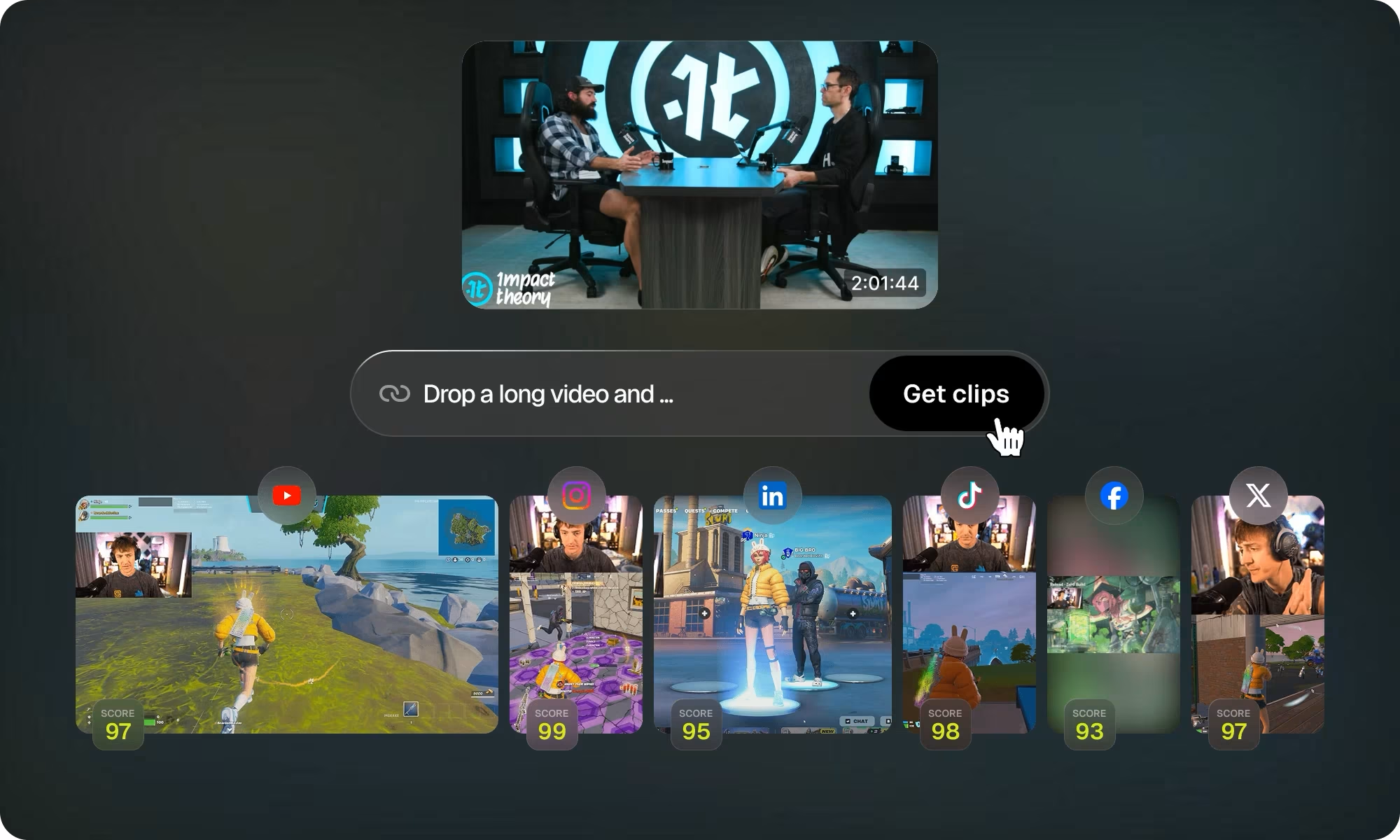
Example clips
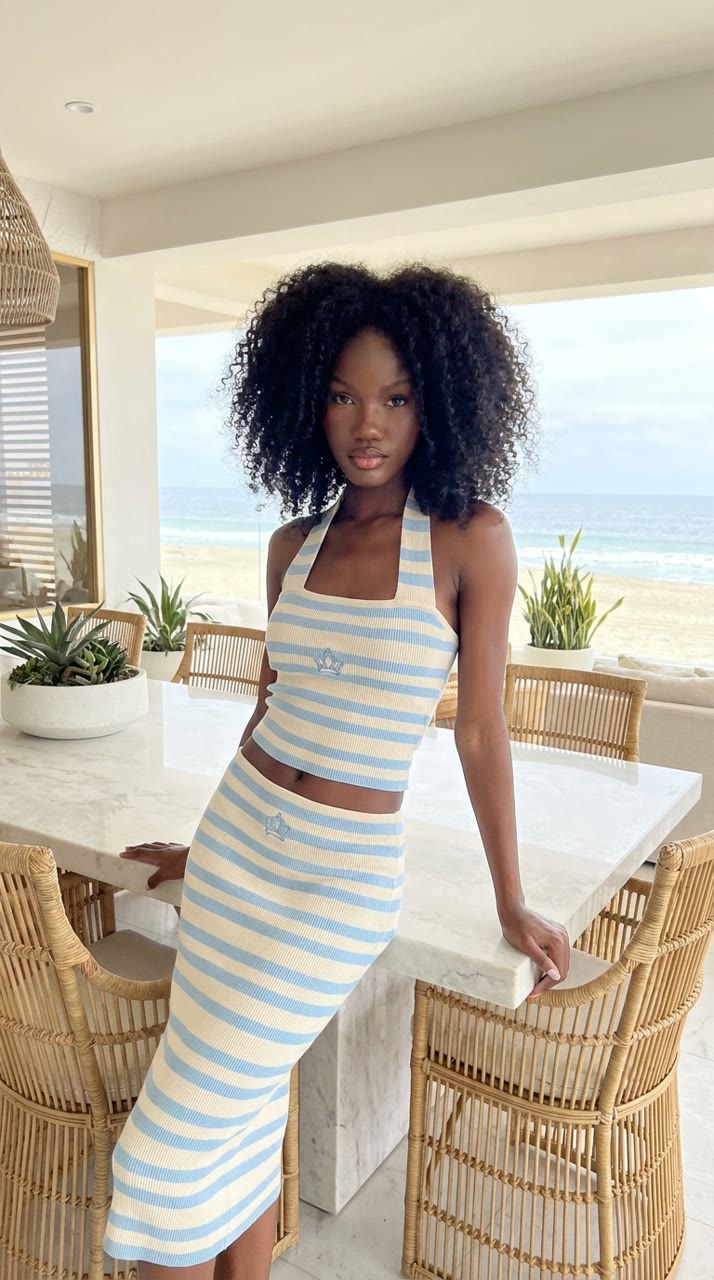
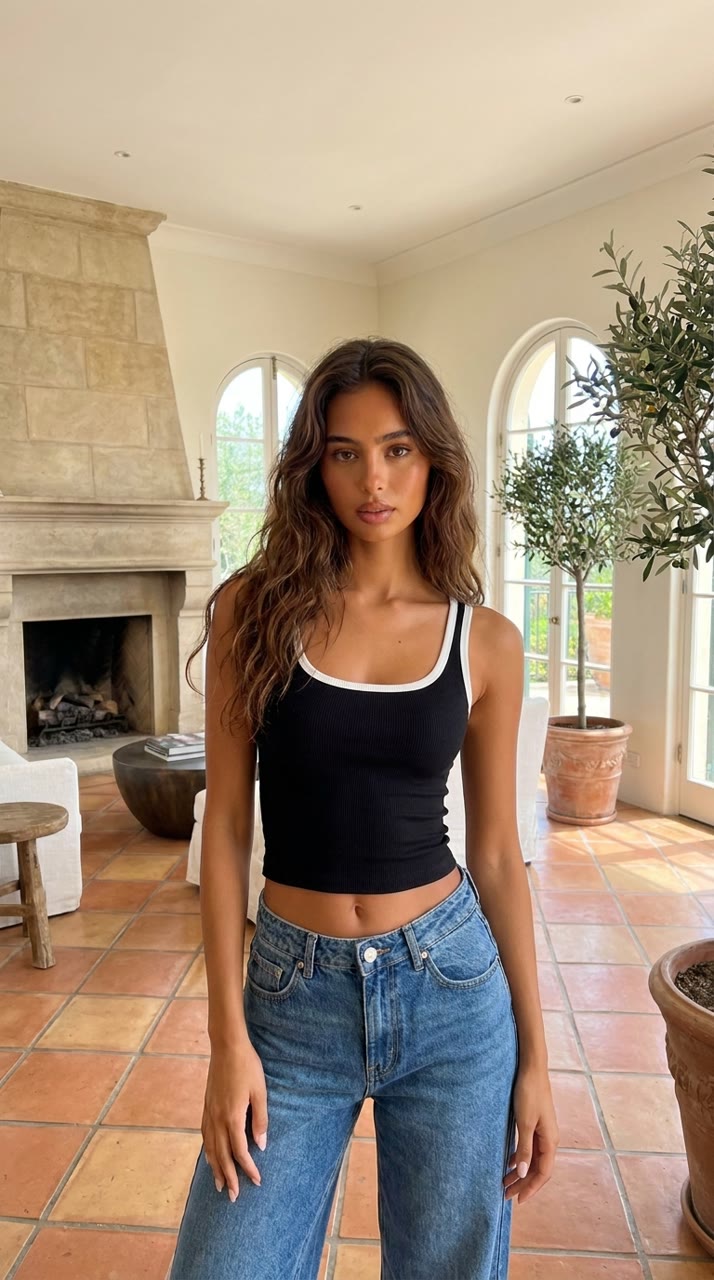
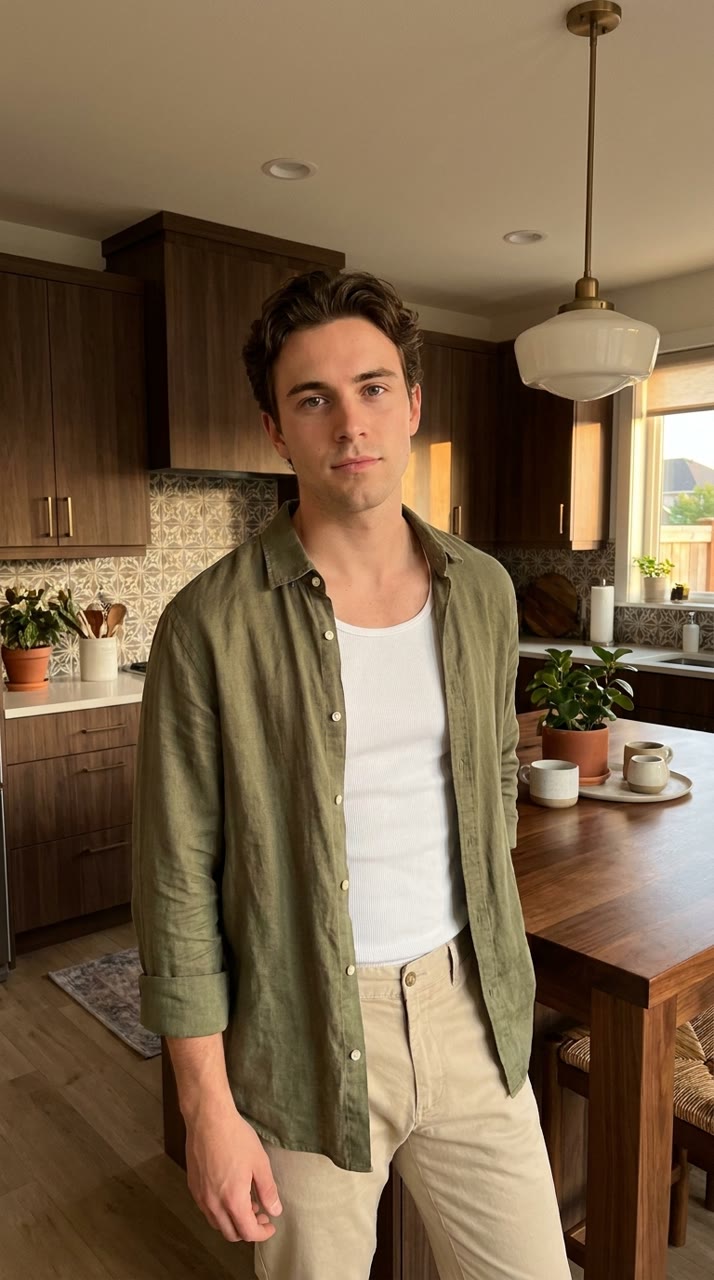
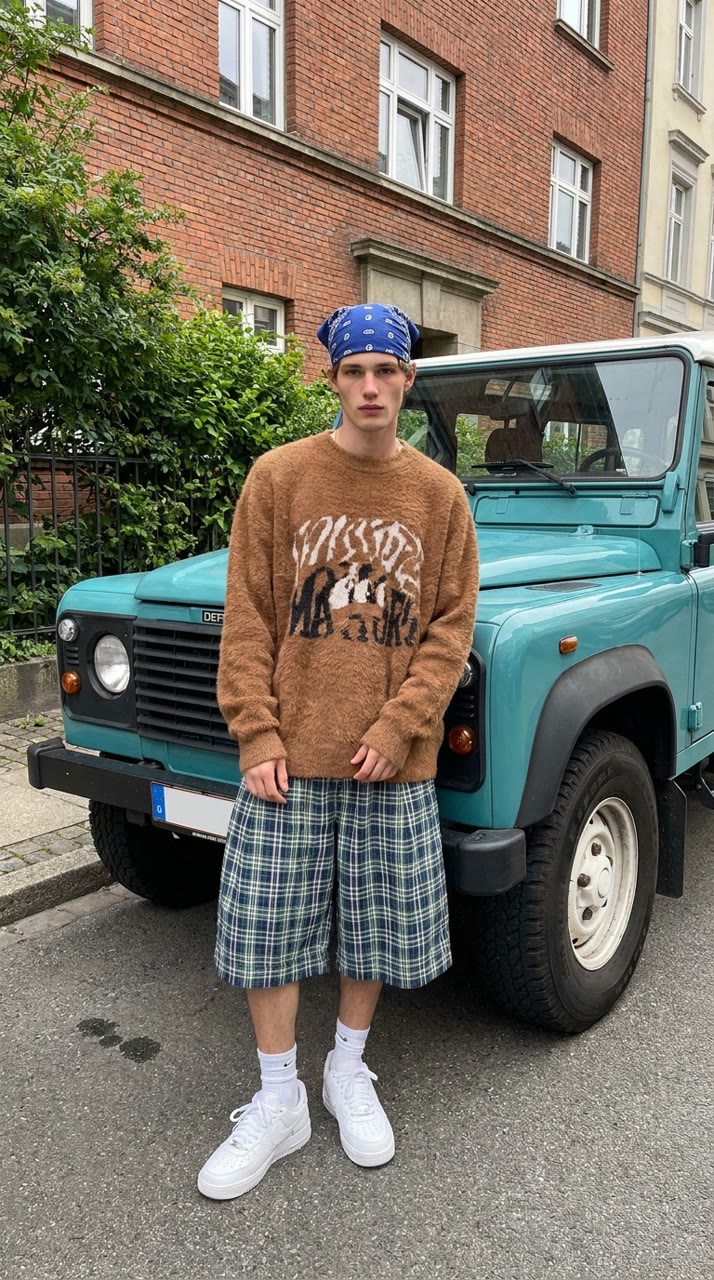
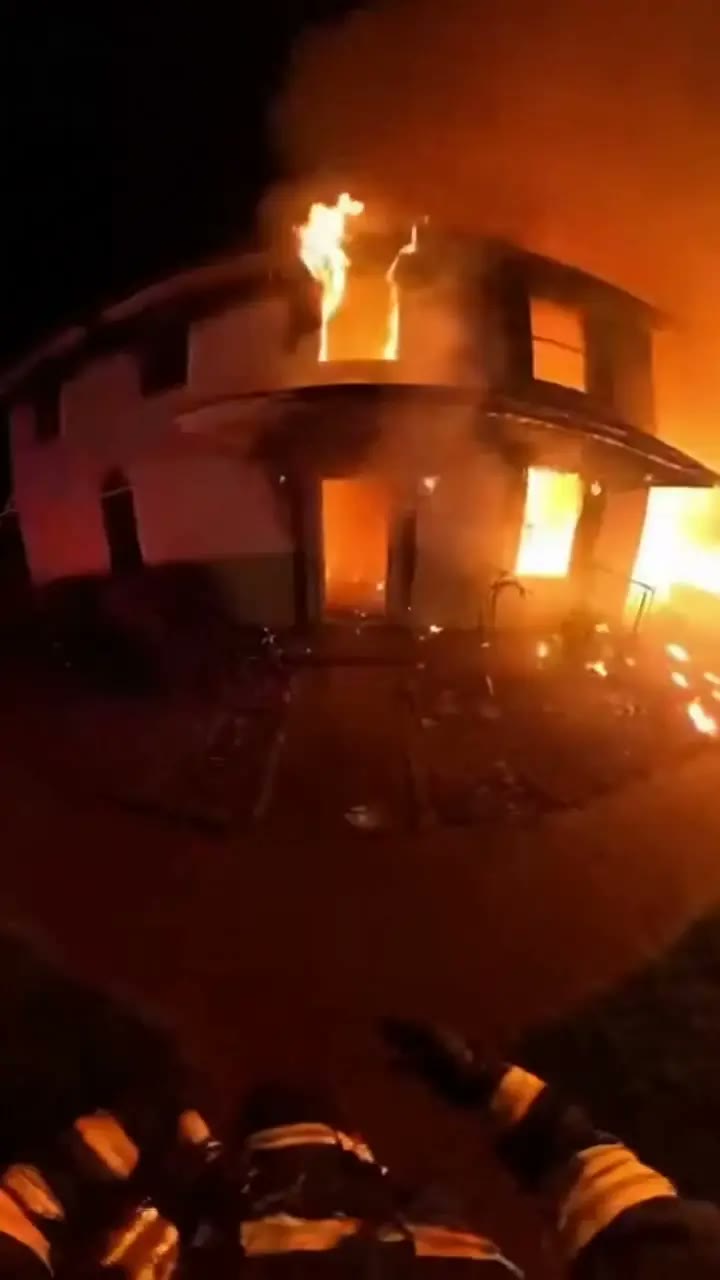
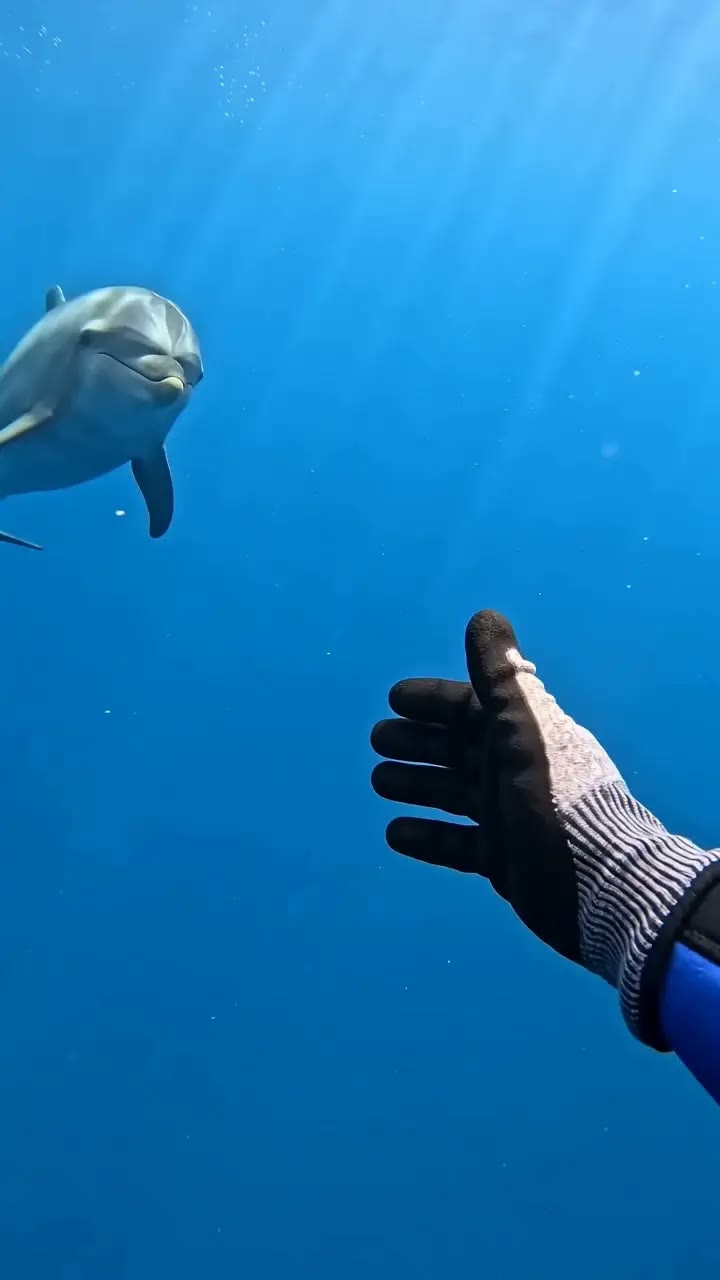

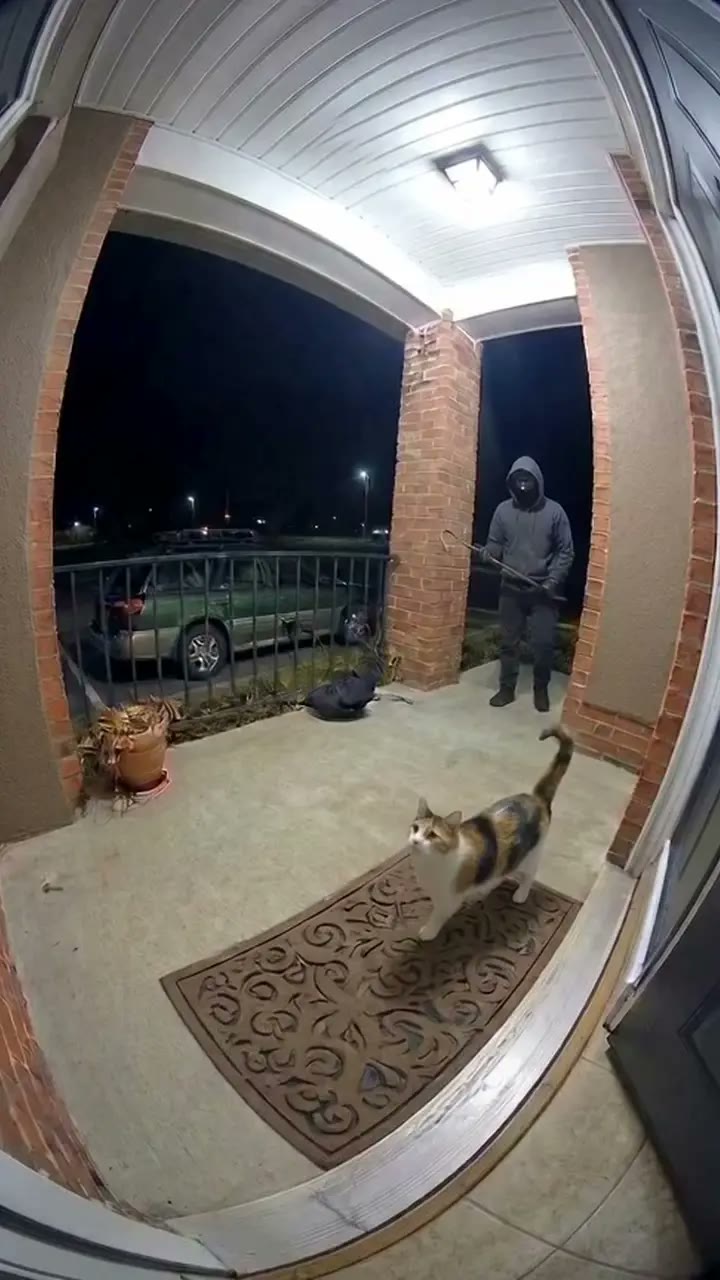
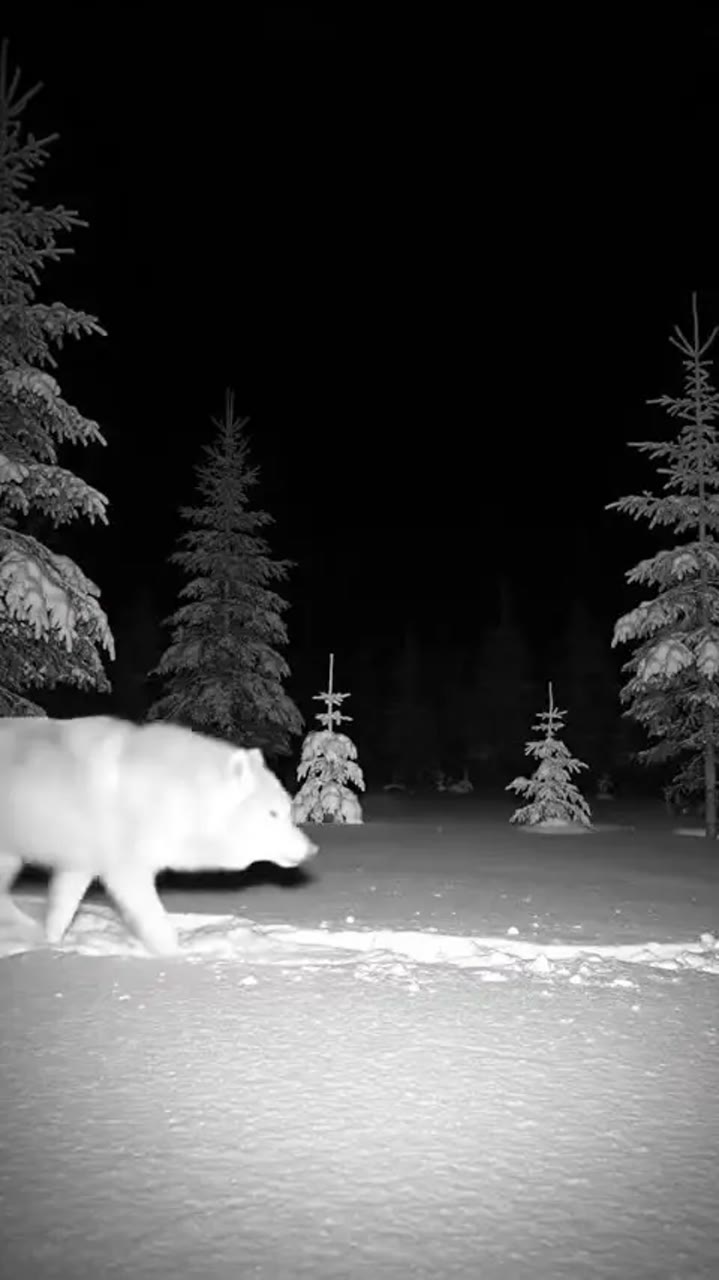




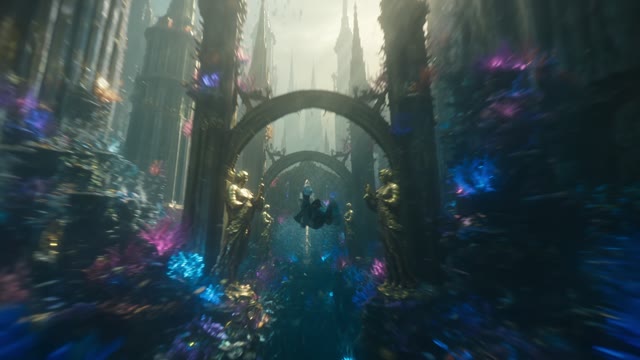


Find the Moments Worth Sharing
Find moments in your video transcript, choose a format, and add captions to create short clips worth sharing.
AI Highlight Detection
OpenShorts uses your video transcript to find moments worth sharing. Start with podcasts, interviews, lessons, or spoken commentary, then preview the finished clips before downloading.
Video Reframing
Choose 9:16 for vertical shorts, 1:1 for square clips, or 16:9 for landscape videos. Download your clips in the format that fits your content.
From Long Video to Short Clips in 3 Steps
1. Add your video. 2. Choose clip length, format, and captions. 3. Preview and download your finished clips.

Preview Your Clips. Download Your Favorites.
Preview finished clips, download MP4 videos and SRT subtitles, and use those files in your preferred editing tools.
Make More from the Content You Already Have
Turn podcasts, interviews, webinars, and tutorials into focused short clips for your audience.

Captioned clips
Turn captions on before processing, then download the rendered video and a separate SRT subtitle file.

Project workspace
Keep your own videos and clips organized by project, with processing status and downloads in your account.
Export and share
Download MP4 clips for YouTube Shorts, TikTok, or Reels. Publish them through the platform you choose; OpenShorts does not post automatically.
See What Short-Form Video Can Look Like
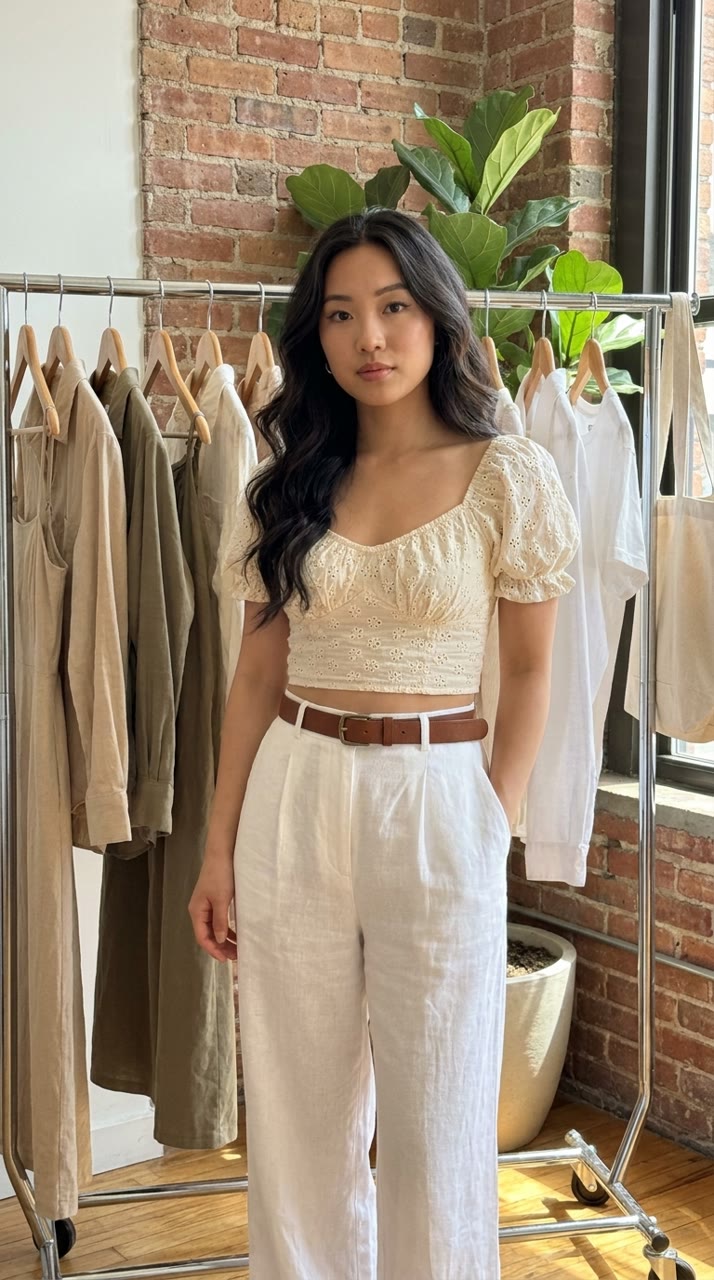
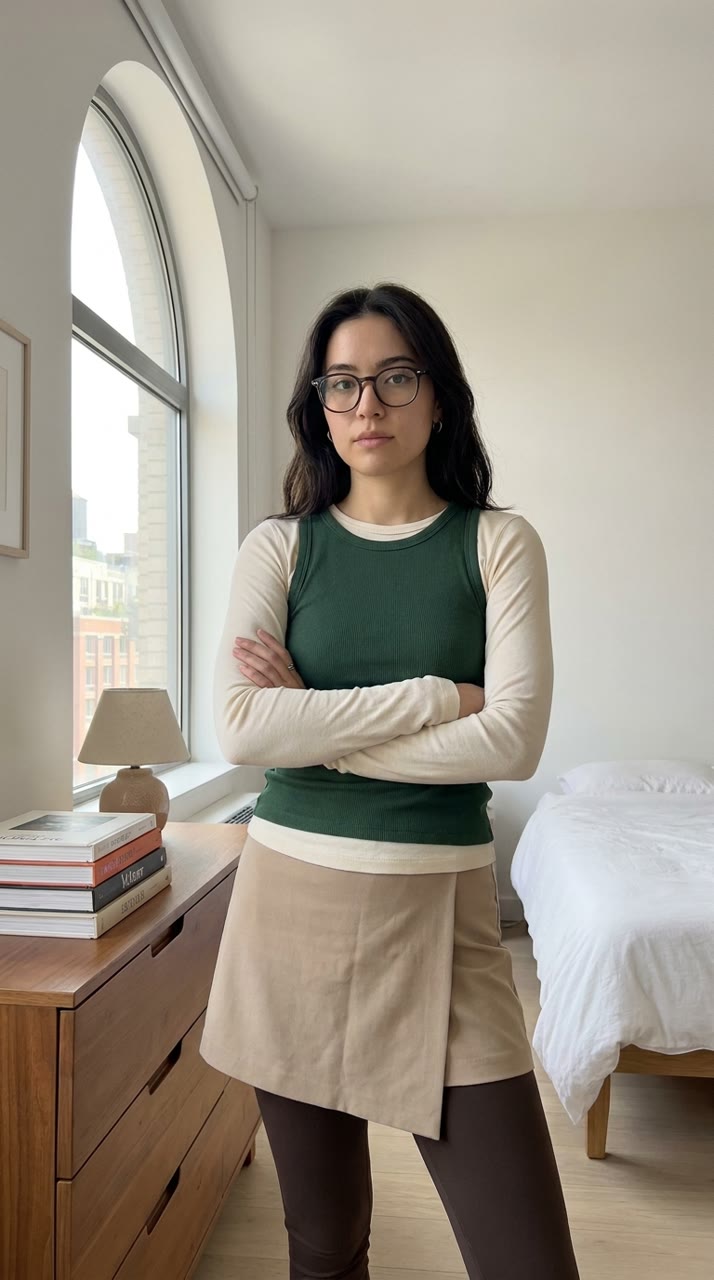
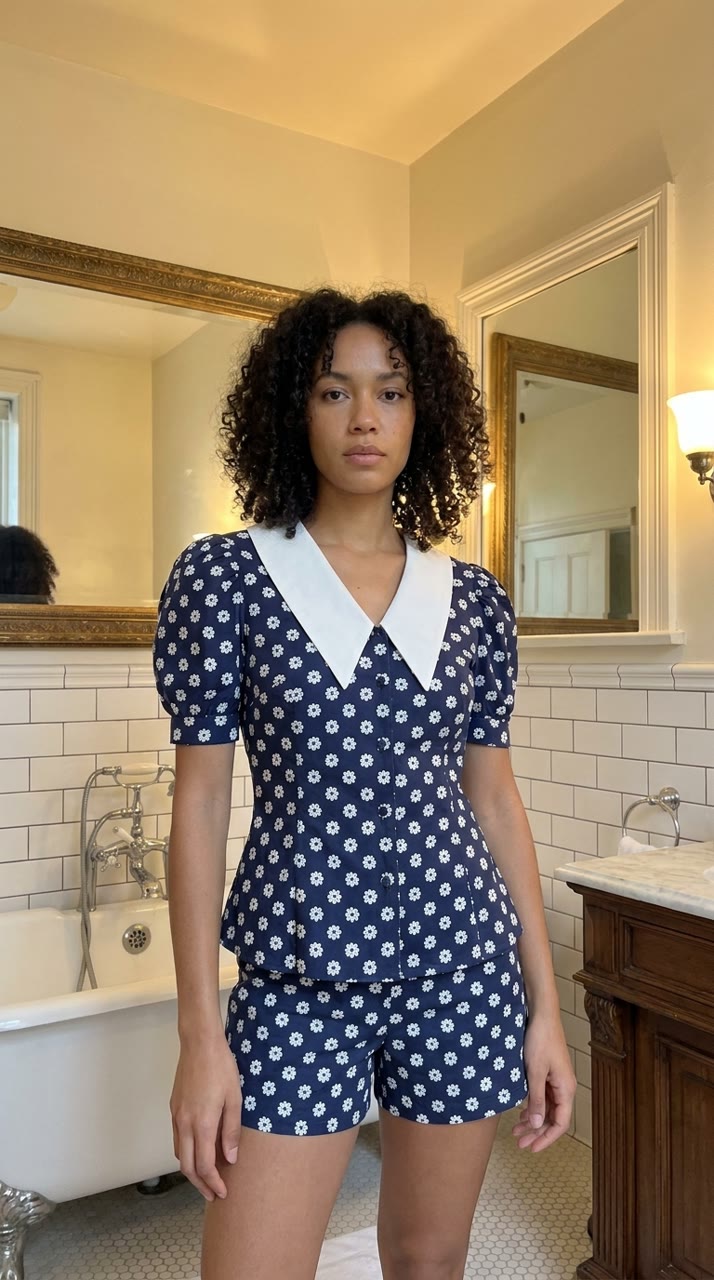
Examples from our own video library. These clips show short-form styles you can make. They are not customer results.
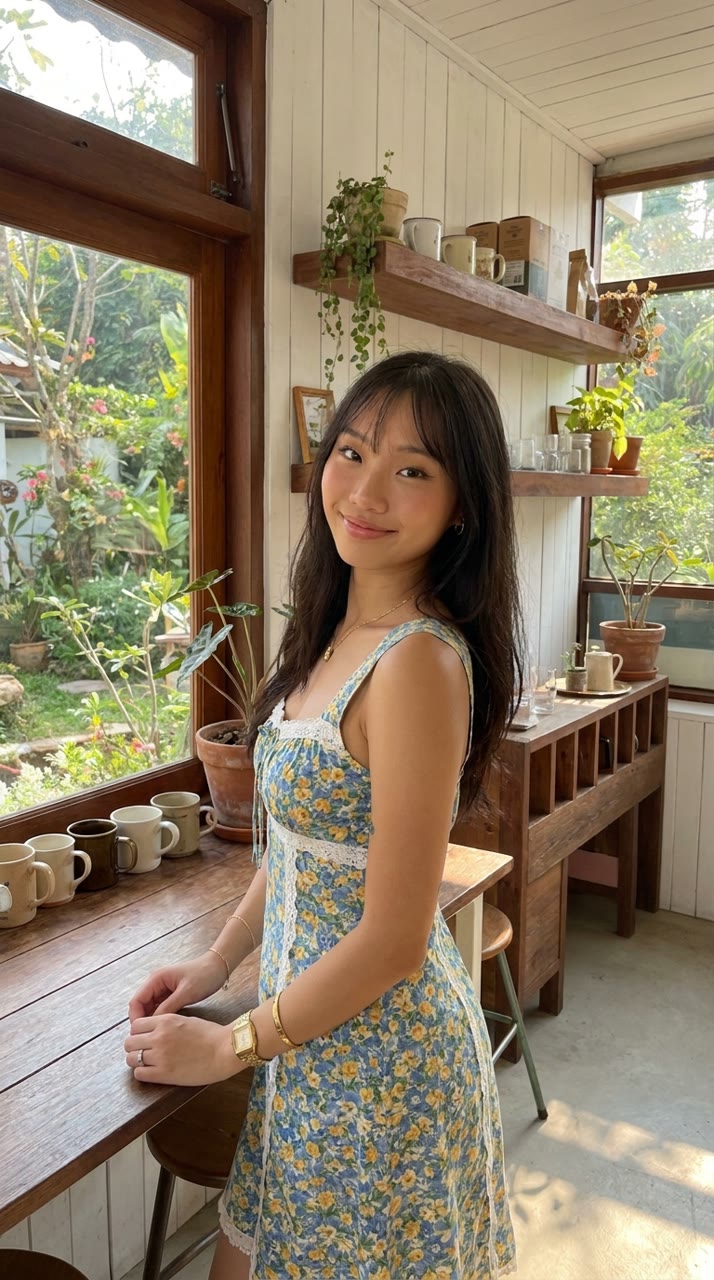
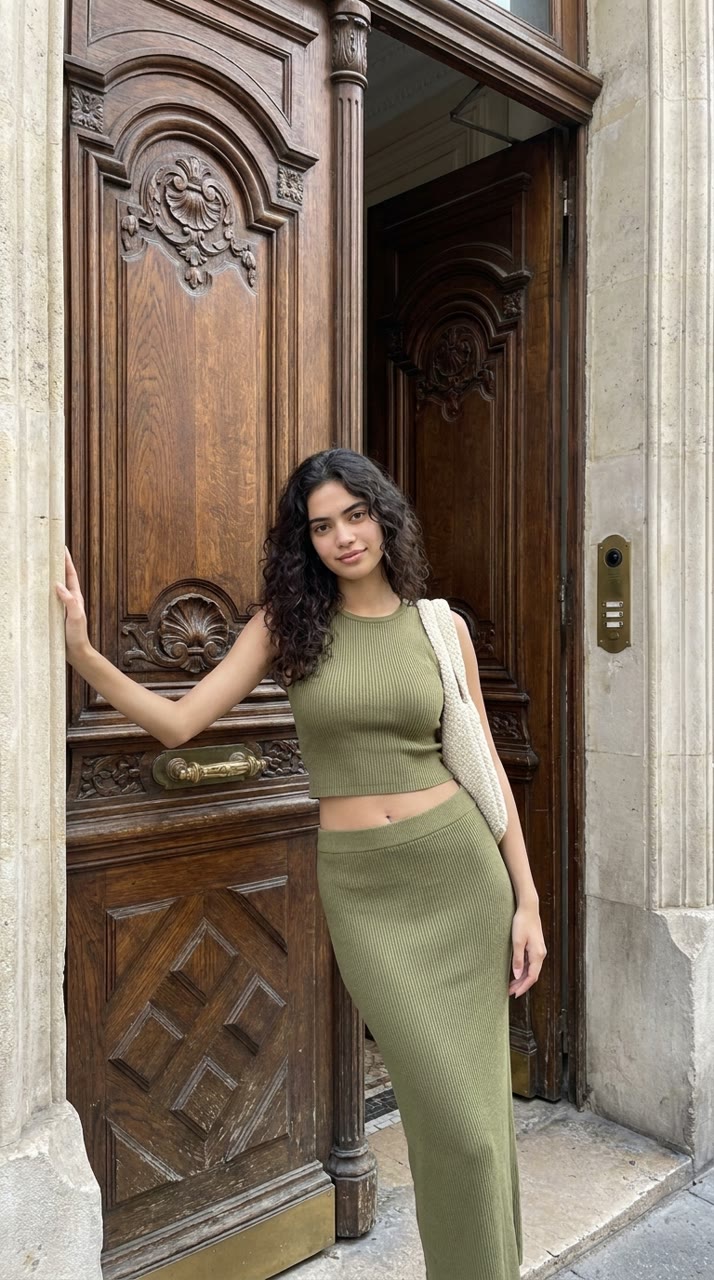
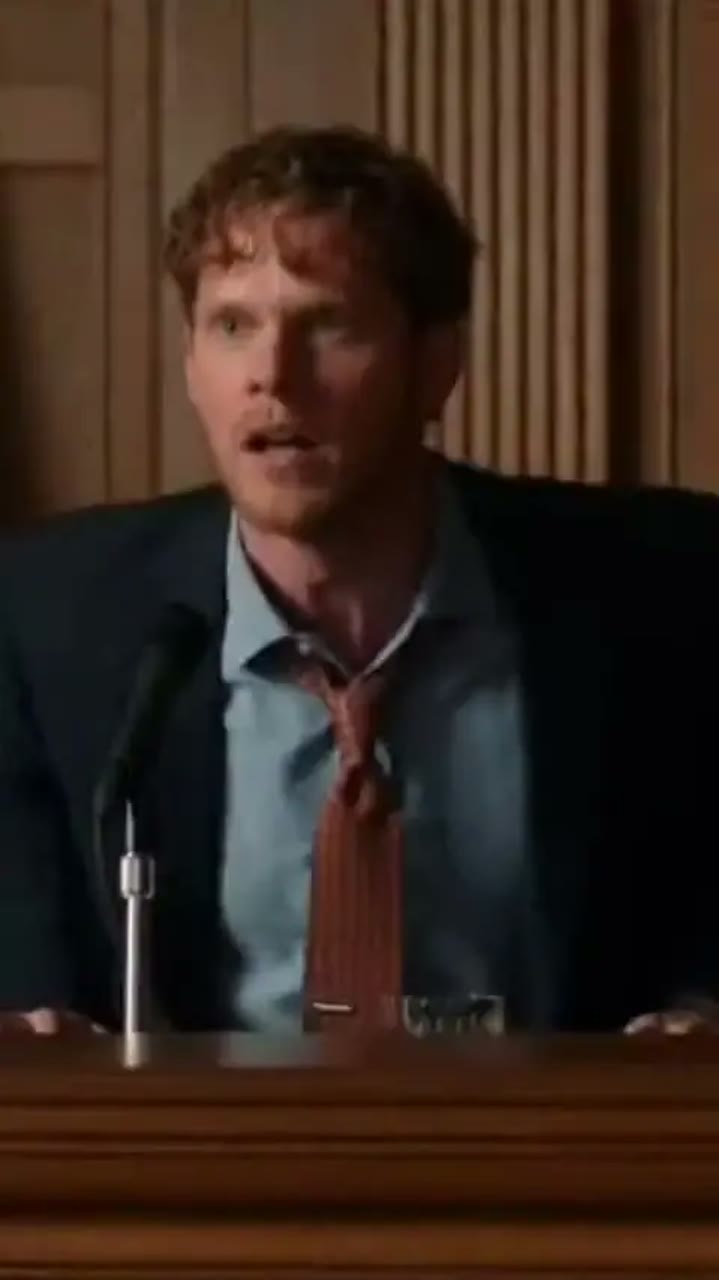
Example: a person on camera in a vertical frame.
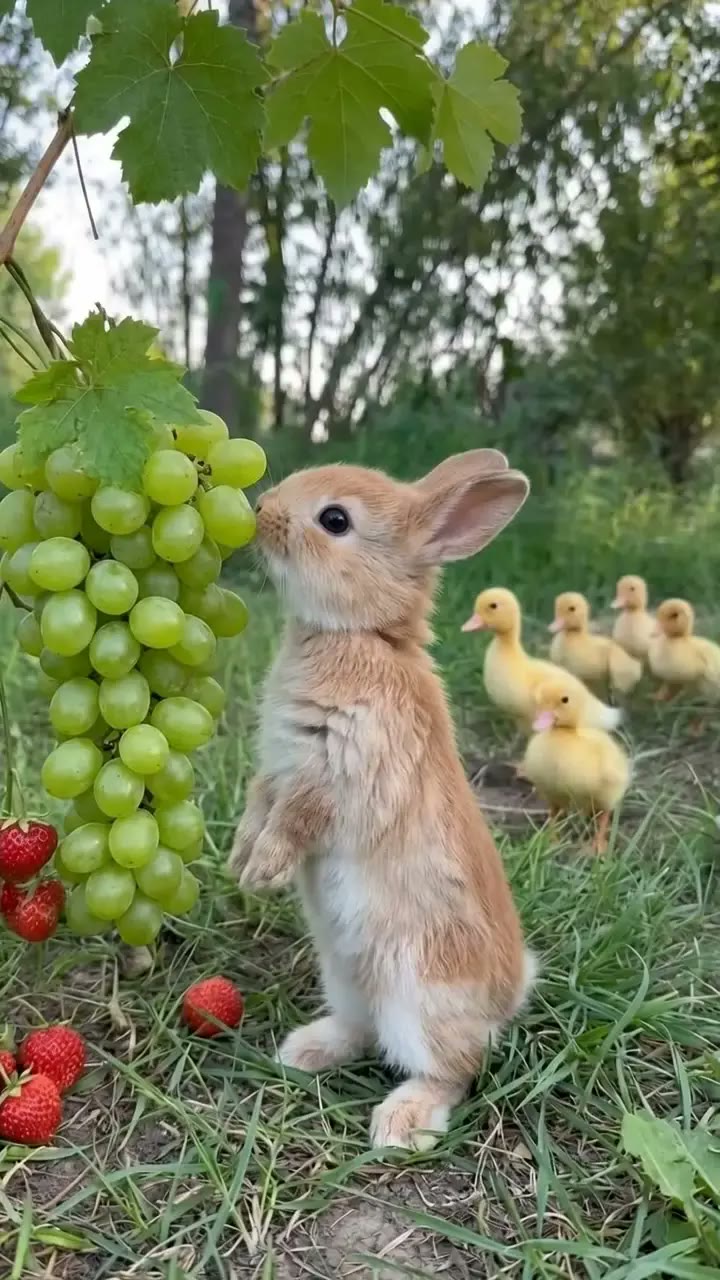
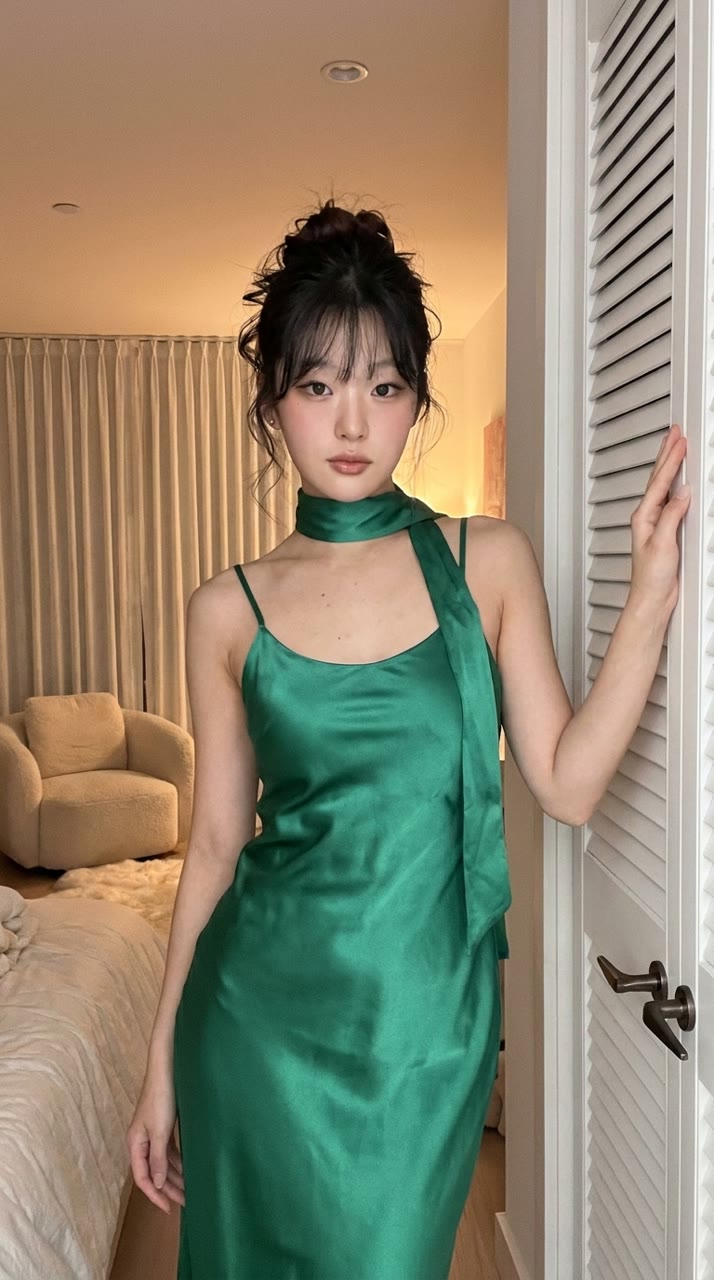
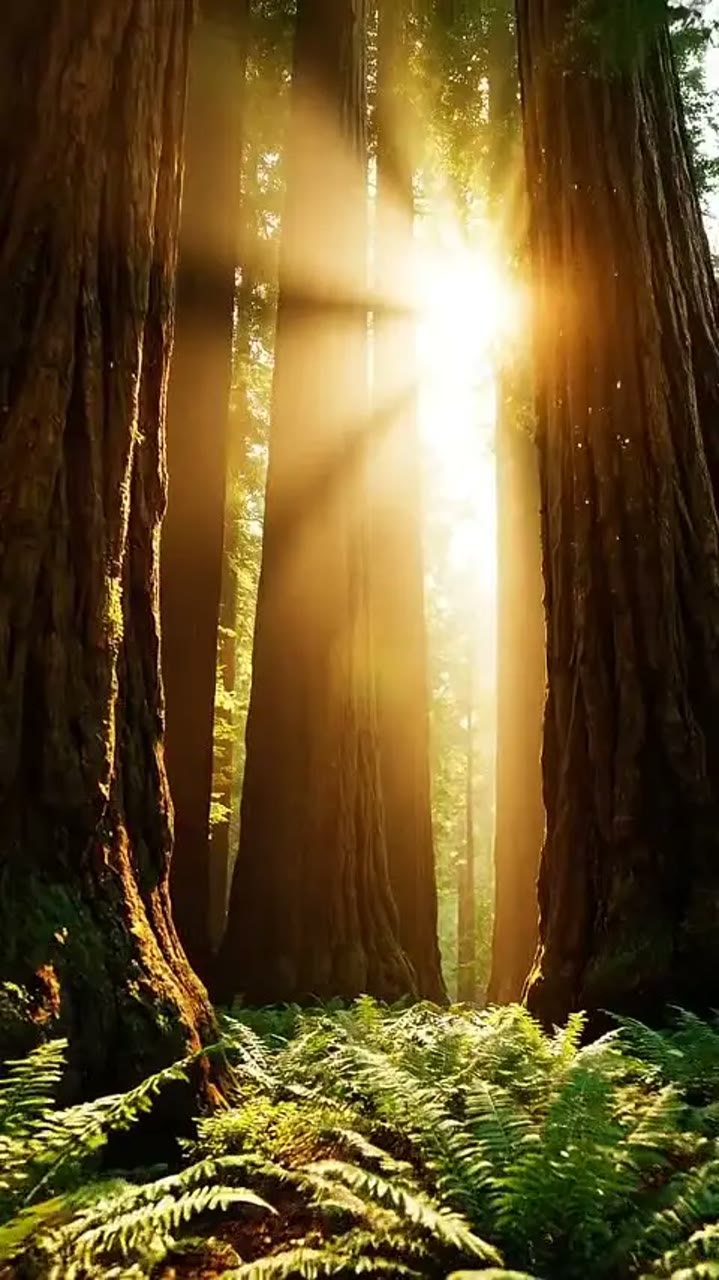
Example: a talking-style clip framed for a phone.
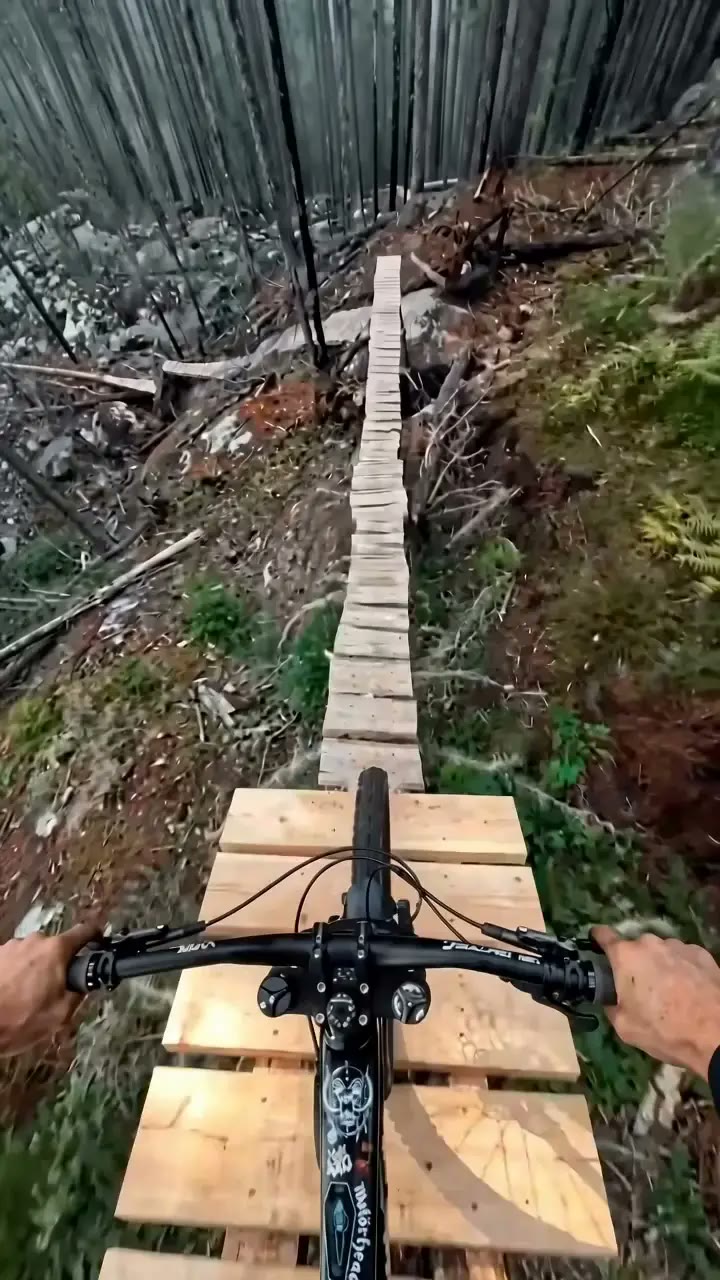
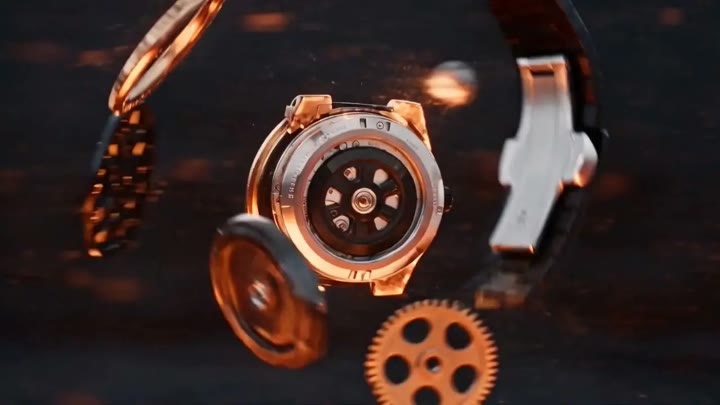
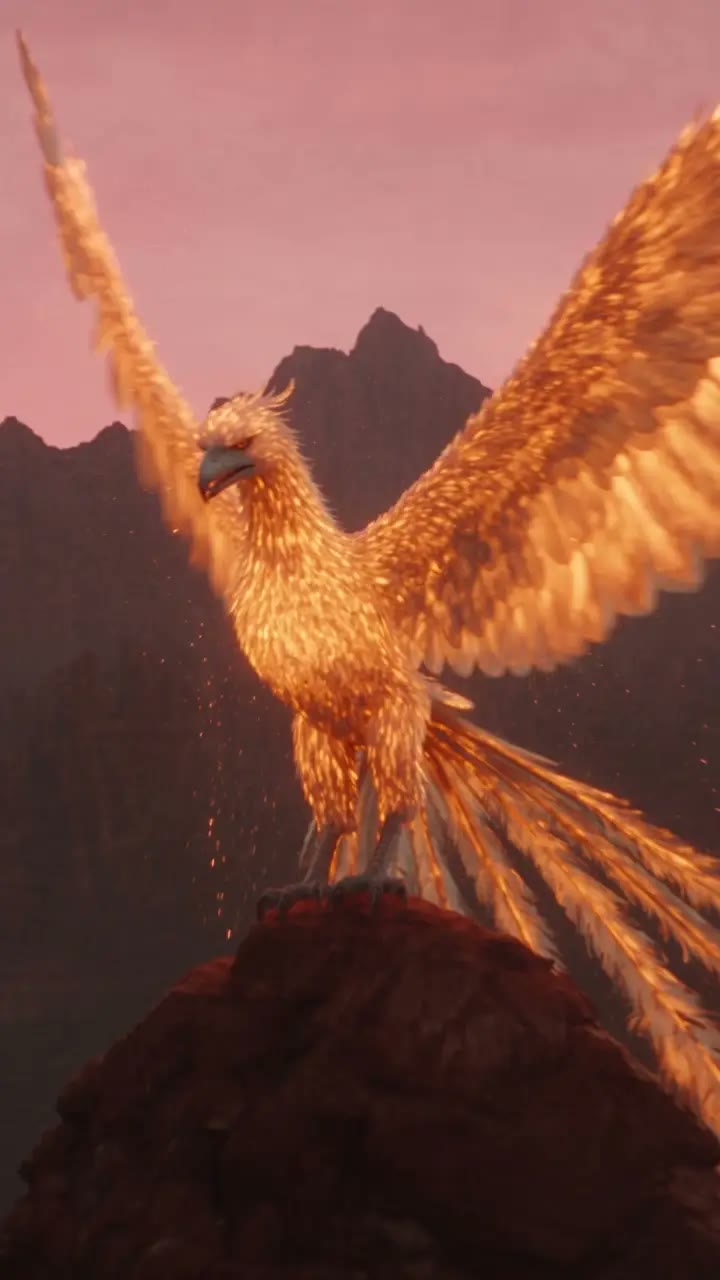
Example: a widescreen scene presented as a vertical clip.
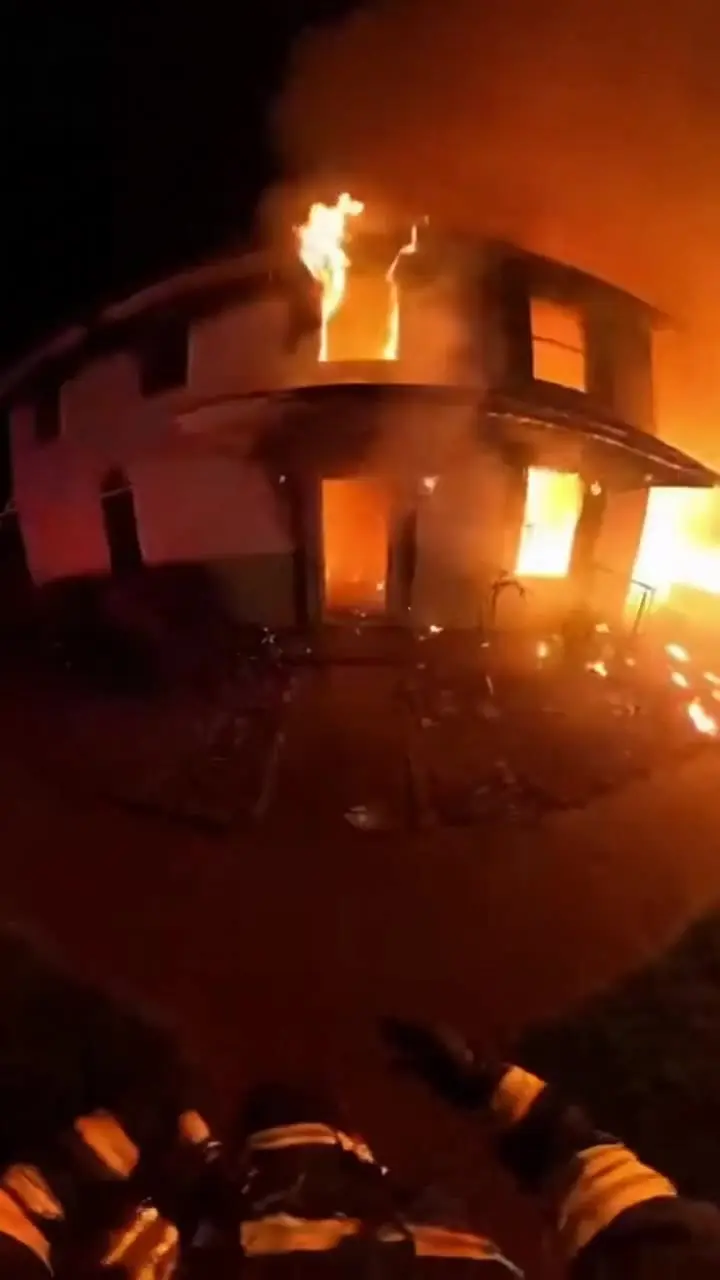
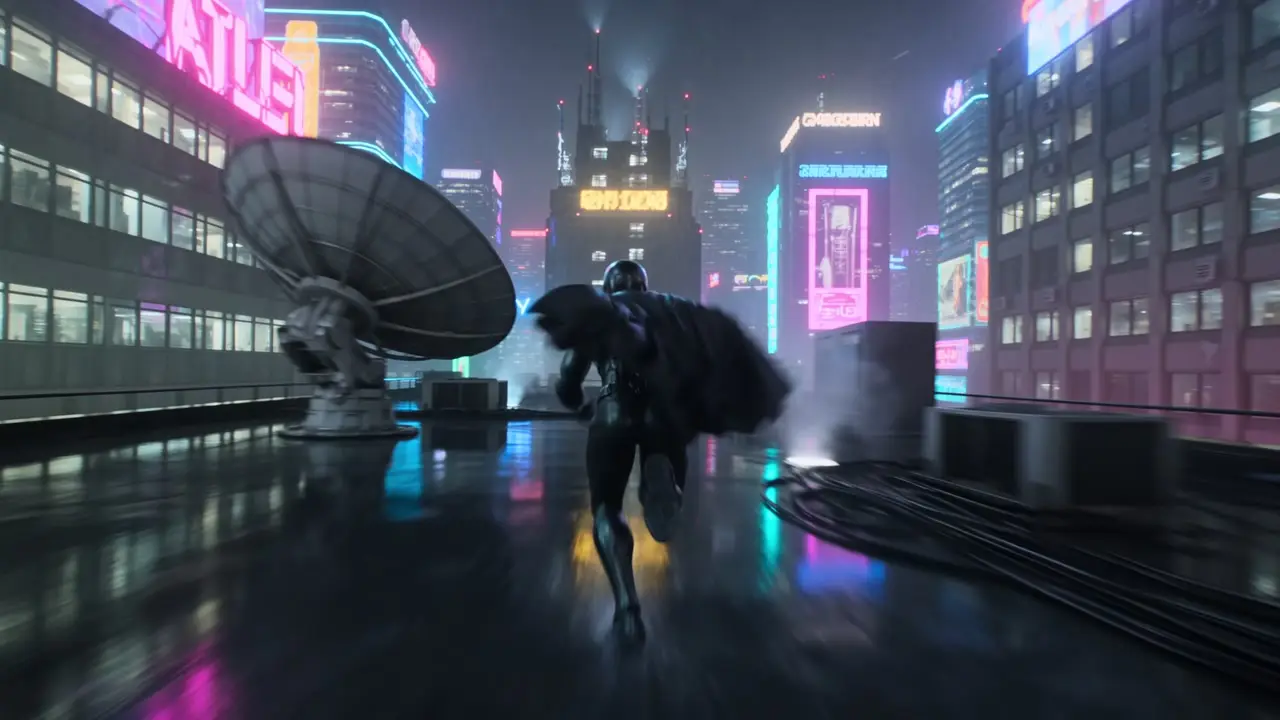
Example: another short made for a phone screen.
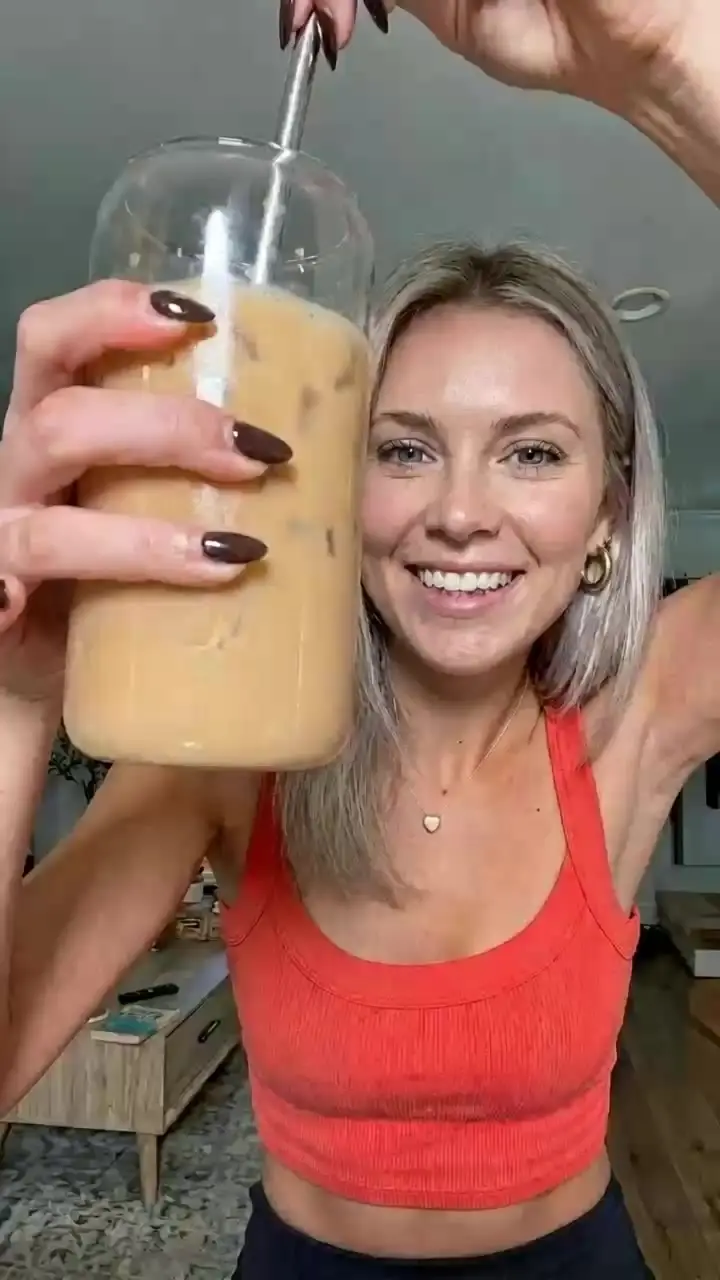
Example: a person on camera in a vertical frame.
Example: a talking-style clip framed for a phone.
Example: a widescreen scene presented as a vertical clip.
Example: another short made for a phone screen.
Example: a person on camera in a vertical frame.
Example: a talking-style clip framed for a phone.
Example: a widescreen scene presented as a vertical clip.
Example: another short made for a phone screen.
Example: a person on camera in a vertical frame.
Example: a talking-style clip framed for a phone.
Example: a widescreen scene presented as a vertical clip.
Example: another short made for a phone screen.
Frequently Asked Questions
What is an AI clip maker?
An AI clip maker turns longer recordings into shorter videos. With OpenShorts, add a video, choose the clip count, length, format, and captions, then let AI select moments from the transcript. When processing finishes, preview and download your MP4 clips and SRT subtitles.
Can I turn a long video into YouTube Shorts?
Yes. Upload an MP4, MOV or WebM video, or paste a public YouTube link you have permission to process. AI Highlight Detection uses your transcript to find moments for short clips. Choose 9:16 for YouTube Shorts, or select 1:1 or 16:9. Files must be no larger than 250 MB, and sources no longer than 60 minutes. Start with AI Highlight Detection in the clipping workspace.
Can I use clips for TikTok and Instagram Reels?
Yes. Choose 9:16 for vertical clips, or use 1:1 or 16:9 for other formats. Download the finished MP4 files, preview them, and publish through the platform you choose. OpenShorts does not post to social accounts.
Does OpenShorts add captions automatically?
Yes. Turn captions on to burn subtitles into your clips. A separate SRT subtitle file is also available for download. Review the output for transcription errors; editing subtitle text or styles in the browser is not currently available.
Will my shorts go viral?
No tool can guarantee viral results.
OpenShorts prepares short, captioned videos from your recordings. Views and engagement depend on the content, audience, and where you share it.
Preview each finished clip, choose the ones you want to use, and download them to publish yourself.
Can I clip any YouTube video?
Only process public YouTube videos that you own or are authorized to use. Private videos, playlists, and live streams are not supported. For help, open the Clipping workspace or submit a Support ticket if you have questions about a project.